Put a website in the Mac menu bar or the Windows tray
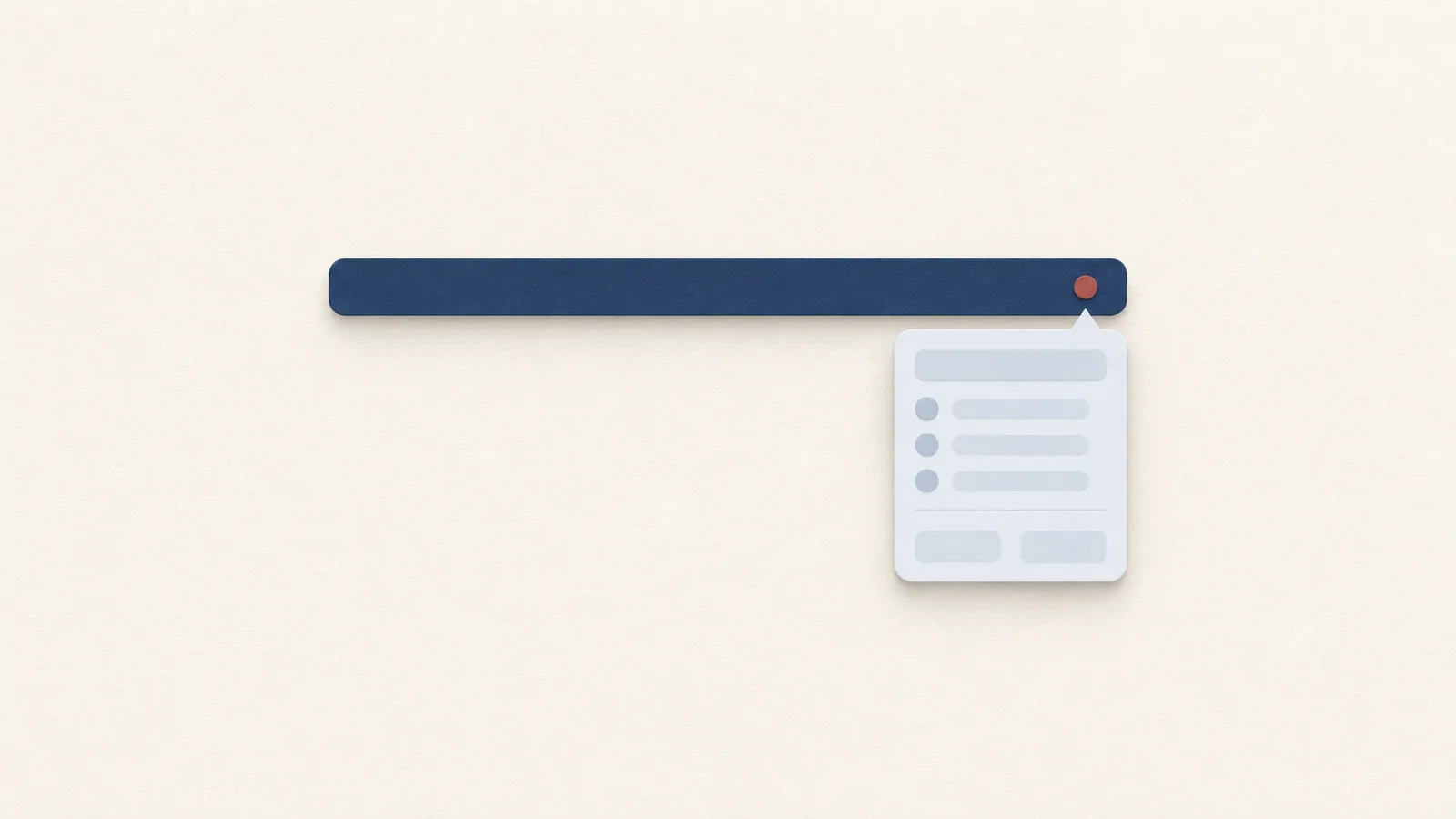
A Pake app can keep a website running after you close its window and show an icon in the Mac menu bar or Windows tray. Turn on Hide on close for the first and Menu bar icon or Tray icon for the second, but the icon opens a normal window, not a popover.
What the two options do
Both are in the Behavior section of an app's page:
| Mac | Windows | |
|---|---|---|
| Hide on close | On by default: closing the window keeps the app running | Off by default: when on, the app stays in the tray |
| Icon | Menu bar icon, off by default | Tray icon, off by default |
On Windows the two are linked, so turning on Hide on close also turns on the tray icon. On Mac they are independent: the app keeps running in the Dock either way, and Menu bar icon adds an icon only if you turn it on. Set them before clicking Create App, or later from My Apps with Edit and Save Changes, which keeps your sign-ins. Create an app describes both rows.
How it works underneath
Closing a window normally ends the app on Windows, and Pake changes that by intercepting the close request. When Hide on close is on, Pake cancels the close and hides the window instead: on a Mac it hides it directly, and on Windows and Linux it minimizes and then hides it. The page keeps running in the background, with its web view and its session intact, which is why a chat stays connected and a page you left half read is still there when the window returns.
The icon is a separate, optional piece. With it on, Pake adds a tray item with the app's own icon and a small menu with Hide, Show and Quit, plus New Window when Multiple windows is on. Pake wires a left click on the icon to a toggle: if any window is visible they all hide, otherwise they all show and the main one takes focus. If your system opens the menu on a click instead, use Show and Hide from the menu. Quit is the one that really ends the app. On a Mac, clicking the Dock icon also brings a hidden window back.
A hidden window needs a way back, and on Windows the tray icon is that way, so Pake ties the two options together. On a Mac the Dock icon and the Dock click already do the job, so the menu bar icon is an extra rather than a requirement.
Good candidates
Music is the obvious one. With Hide on close on, closing the YouTube Music window keeps the app running; whether the music keeps playing is up to the site, so test it once. The YouTube Music guide covers the rest, including sign-in.
A chat or AI site you return to all day works the same way, and so does a single notes page, such as one Notion page you keep for the day. When the service has its own desktop app with menu bar features, such as Notion's quick search, that app is usually better for those features, and a Pake app is for the one page you want to keep separate. Notion's app or a Pake app looks at that choice in more detail.
Make the app
On the Create tab, type a name into Search apps or paste a web address or paste the site's address, which is also the way to go if the tile is missing. Keep Hide on close on for Mac, or turn it on for Windows, and turn on Menu bar icon on Mac if you want one. Leave Incognito off so the site remembers you, then click Create App.
If you want the window small enough to feel like a utility, set Size on Mac or Window size on Windows before you create it, and consider keeping it on top while you work.
Close the window, or quit
On a Mac, closing a window usually leaves its app running, and quitting is the app's Quit command or Command-Q, as Apple's help describes. A Pake app with Hide on close behaves the same way. Command and W hides the window without quitting in every Pake app. Turn Hide on close off if you would rather closing the window end the app, which is the Windows default.
On Windows, an app with Hide on close may not close when Pake asks it to, for example while you remove it from My Apps; Pake then offers End App, which loses anything unsaved in the app.
Do the same with the CLI
After setting up the CLI:
pake https://music.youtube.com --name YouTubeMusic --show-system-tray --hide-on-close--show-system-tray adds the menu bar or tray icon, and --hide-on-close hides the window instead of quitting, which is already the default on macOS. Add --start-to-tray to launch with the window hidden; it only works together with --show-system-tray. --system-tray-icon takes a .ico or .png between 32 by 32 and 256 by 256 pixels if you want a different image from the app icon. The CLI options list the details.
If the icon or window does not come back
If you cannot find the icon, check Menu bar icon or Tray icon in My Apps with Edit. If the icon is there but the window will not show, use Show from its menu rather than clicking repeatedly, because a click on the icon toggles and a second click hides it again. On a Mac, the Dock icon is the fallback. If a Windows app will not remove or update because it is hidden, use End App and accept that unsaved content in it is lost.
The icon is not a panel
The icon belongs to the app and its normal window. It is not a small popover, and it does not show an unread badge or a list of the site's actions, so set a compact size if you want the window to feel like a menu bar utility. A real popover or an unread count would need a native app.
FAQ
Does the website keep running while the window is hidden?
The page stays loaded in its web view and is not reloaded when the window returns. How much it does while hidden, such as playing audio or holding a live connection, depends on the web view and the site, so try it once.
Can the app start hidden at login?
The desktop app has no field for starting hidden. --start-to-tray in the CLI launches with the window hidden, and adding the app to your system's login items is a separate system setting.
Does hiding to the tray use less memory?
Not by itself. The web view stays alive, and Pake's own documentation says the memory a Pake app uses comes from the system web view and the page you load.